|
|
|
Partition recovery
 |
|
 |
 |
|
 |
|
The physical disk can be divided into several logical disks (which you
see as a separate drive letters like C:, or D: and so on), also called "volumes".
The Master Boot Record (MBR) and optionally several Extended
Partition Pointers (EPPs) are used to hold information about how many
volumes there are on the physical disk, and where they are located. MBR and EPPs
occupy 512 bytes (one sector) each. MBR is located in a sector 0 of the physical
disk and contains some machine code responsible for the boot process. It also
contains up to four entries describing a partition. Each of those may be unused,
may point directly to the volume, or point to the EPP block. Each EPP block
contains a pointer to the volume and an optional pointer to the next EPP block
in chain. This way, one can split a single physical disk into more than four
logical volumes. A partition defined in MBR is called Primary Partition,
as opposed to the partition defined in one of the extended partition chain EPPs,
which is called Logical Drive.
These tables
(MBR and EPPs) are collectively referred to as Partition Table. The set
of the EPP blocks (and sometimes volumes contained therein) is called
Extended Partition.
If the Windows 2000/XP or later "Dynamic Disks" are used, the partition table
is not used (except for a boot process and one compatibility entry). LDM
database is used instead.
Some
typical partitioning layouts are illustrated below:
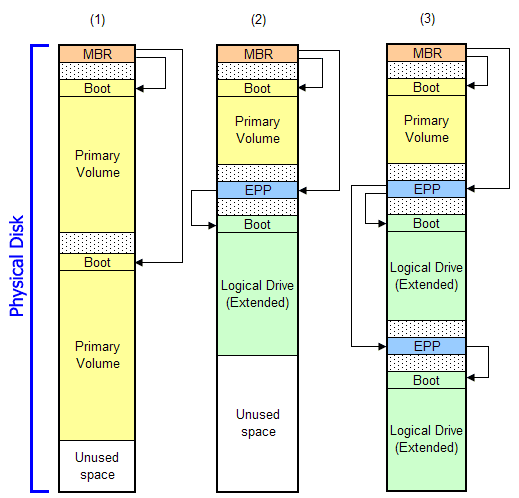
(1) Features primary volumes only, with no extended
partitions present.
(2) Features one primary volume and one logical drive with the simple
(non-chained) extended partition record
(3) Presents the example containing one primary volume and two extended volumes
(extended partition records are chained)
There are some limits: the MBR can only contain up to four
records in total (counting both primary partitions and a pointer to EPR, if
any). In theory, the EPR may contain four entries as well (thus making extended
partition chain forks possible) but in practice this is never used. Also, the
logical drives in the extended partition cannot be made "active" (bootable).
|
|
 |
|
 |
 |
Why partition recovery is sometimes needed - typical failure
modes.
|
 |
 |
|
 |
|
Partition tables become corrupt for various (often obscure)
reasons, causing various symptoms, including but not limited to the following
most common:
-
Some volumes just disappear. Disk Manager may show either
unallocated space or something weird where the volume(s) are supposed to be.
-
System may refuse to boot up with messages similar to "Bad
or missing partition table", "Error loading operating system", or without
any messages at all (in this case double check cabling and SCSI termination, BIOS
settings, and that BIOS does successfully detect the drive).
-
"Phantom" volumes or free space areas may appear in the Disk
Manager (i.e. the ones you did not create). The total storage capacity
(calculated by summing up all volume and free space area sizes) may be
exceed the capacity of the physical disk. This indicates that some volumes
overlap with each other, a particularly dangerous situation because writes
to one volume end up damaging the other one. Note that Disk Manager GUI has
no way to indicate such an overlap, you need to perform the calculations
yourself.
-
In rare cases Windows blue screen STOP:
INACCESSIBLE_BOOT_DEVICE is caused by the damaged partition table, most
likely reasons for this error being a RAID drivers and/or BIOS/cabling
issues.
Typical partition damage profiles are illustrated below.

Note: red vertical lines indicate inaccessible data.
(4) illustrates the most simple situation caused by an operator
error - the deletion of a wrong volume. The data is still intact and in place,
albeit inaccessible. Since the reference to the volume is deleted, there is no
way for the operating system to reach that data.
(5) is the example of a significant localized damage, similar to
that caused by some viruses. This is the worst case scenario: all the partition
table entries are either damaged (MBR) or inaccessible (no route to locate EPPs).
On top of that, the boot sector of a primary volume is damaged and in case of
FAT32 file system, the backup boot sector is also gone (since it is stored close
to the primary one).
(6) illustrates partition chain corruption. Note that both
logical drives are lost once the first link has been broken.
|
|
 |
|
 |
 |
Understanding partition recovery
|
 |
 |
|
 |
|
The key to successful partition recovery is knowing the sizes
and locations of the missing volume(s). The simplest situation is if the disk
was partitioned as a single logical drive. In this case it is efficient to
assume that volume occupies the whole physical drive and let the filesystem
recovery algorithm do the rest. The "slack" space before and after the volume is
typically small and does not create any significant distortion. Partition
recovery becomes more complicated when multiple volumes are involved, because
the damage to MBR or somewhere early in the extended partition chain makes
multiple volumes disappear at once. The difficult part is then to define the
boundaries between the volumes. To solve the problem, utilize following features
of the on-disk layout to the full extent:
-
The boot sectors (and their backup copies if any, see below)
may be still be intact on the disk. ZAR
can search for and identify any such remains. Manual attribution of the found objects to their
corresponding volumes is still required, but the disk scan results are in
most cases helpful.
-
The volumes are placed close to each other. "Slack" (unused)
space between them is typically about 64 or 128 sectors (32KB and 64KB
respectively). For partition recovery purposes, it is in most cases safe to
disregard this slack space and treat the allocation as contiguous. This
provides a last-resort information: one can derive the location of the
volume by simply summing up the sizes of the volumes before it.
Take a special note that FAT series filesystems (FAT16 or FAT32)
place their metadata very close to the start of the volume. So, the filesystem
recovery process is much more sensitive to lower (start) boundary of the volume
than to the upper (high) boundary. Keep this in mind when
manually defining the areas for the filesystem
recovery.
|
|
 |
|
 |
Zero Assumption Recovery: A magic that works.
|
|
|
|
Weekend discount starts in 6 hours 48 min
No messing about, does exactly what it says on the tin!!!
Tried three other freeware solutions with no luck, but
'Zero Assumption Digital Image Recovery got them first time.
The names a bit of a mouthful and the interface is nothing to write home about but who cares it
gets the pictures back safely!
|
|